 MathTypeX
Why Arabic mathematics is different
Arabic mathematics is written right to left, and many structures are mirrored: fractions, roots, powers and brackets. It has its own mathematical letters and marks, such as the derivative marks that stand above a letter. Most equation editors are built for Latin text and make Arabic a struggle. MathTypeX is built to make it simple.
Right-to-left writing
The equation grows from the right and structures are mirrored the way they are printed. Switch direction with one click.
A fully Arabic interface
Every tab, tooltip and dialog is translated, and the toolbar layout mirrors too.
Arabic-Indic digits
Digits appear as ٠١٢٣٤٥٦٧٨٩ by default in the Arabic interface; Eastern Arabic-Indic and Western digits are one click away.
Matching Arabic fonts
Choose Naskh, Sans, Kufi or Tajawal, and the result is identical in the editor and in the exported image.
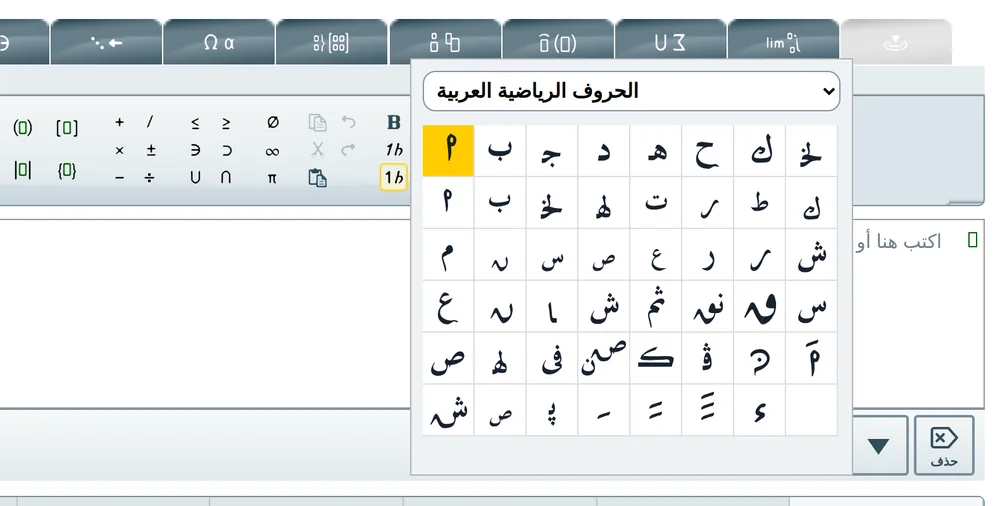
Arabic math letters
A palette of the shapes used in printed Arabic mathematics. They are drawn as vector shapes, so they look the same on every device and in every exported image, with no font to install. Open Insert special characters and choose Arabic math letters.

Derivative marks
First, second and third derivative marks are included. Put one above a letter and it stands clear without touching or crossing it; add as many as you need.

How to turn Arabic on
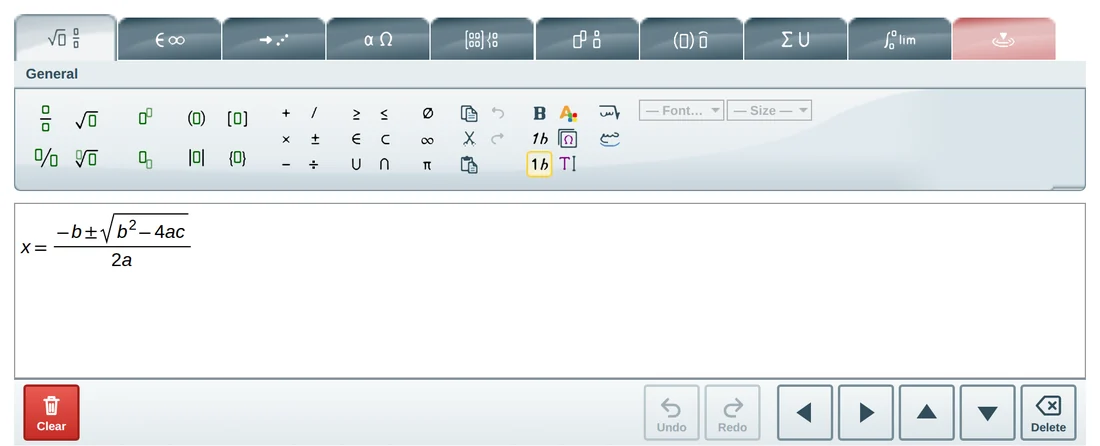
The easiest way is to open the Arabic version of the editor. If you are using the English editor, use the three buttons of the General tab:

- Right to left editing – the equation grows from the right and structures are mirrored. Click again to go back.
- Arabic ligature – the Arabic letters you type join into one connected word. Leave it off to keep letters separate, like variables.
- Insert special characters – opens the panel; choose Arabic math letters.
For Arabic-Indic digits, open the “Greek, letters and numbers” tab and use the numeral buttons.
Exact positioning
Printed mathematics sometimes needs a letter or a mark a pixel or two away from where an automatic layout puts it. Select the element and open the contextual tab: four arrows move it one pixel per click, and the offset is saved with the formula. The shortcut is Ctrl + Shift + an arrow key.
Ready to write your first equation?
Open the full-page editor. It is the same editor you just tried, with the whole window to work in.